General
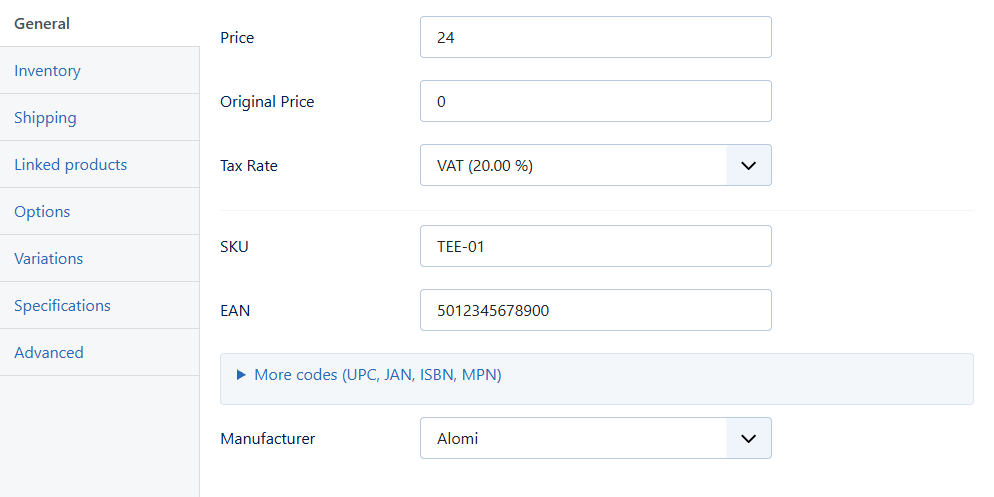
Price, original ("was") price, tax rate, SKU, EAN, more codes (UPC, JAN, ISBN, MPN) behind More codes, and the manufacturer (brand).
Inventory
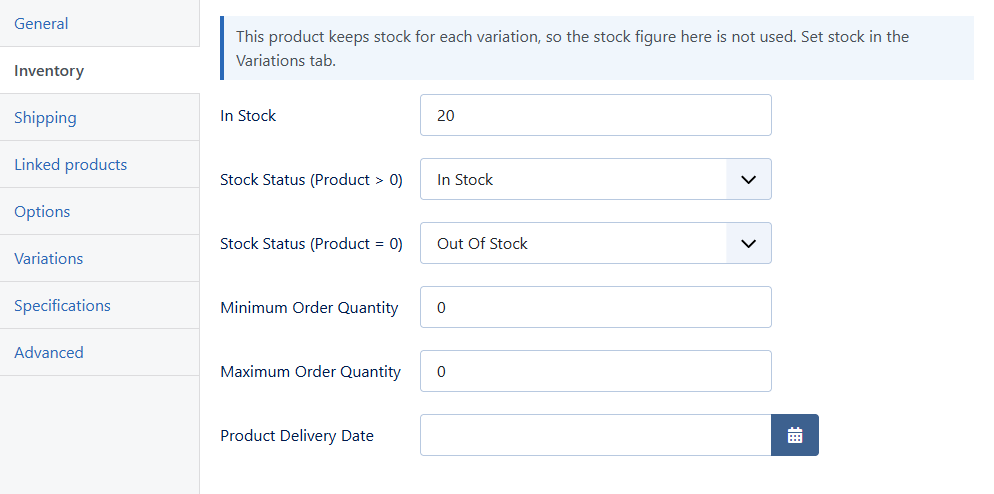
Stock, the stock status shown when the product is in stock and when it is not, minimum and maximum order quantity, and a delivery date. When the product keeps stock per variation, a note says the stock figure here is not used.
Shipping
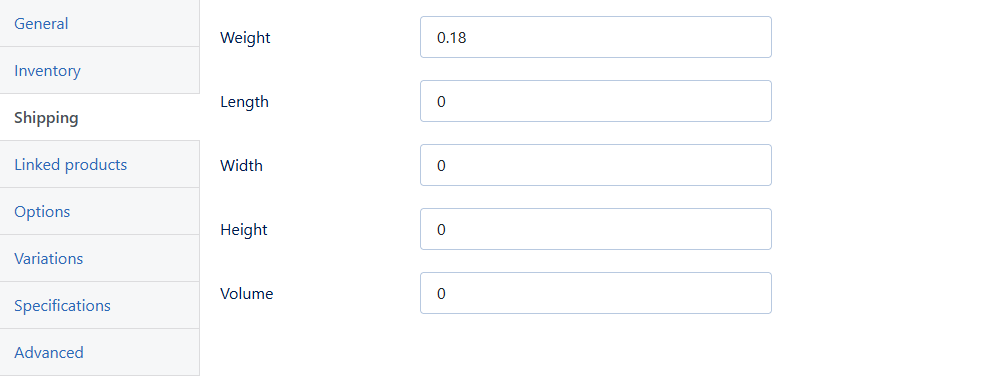
Weight, length, width, height and volume, used by Phoca Cart's delivery prices.
Linked products
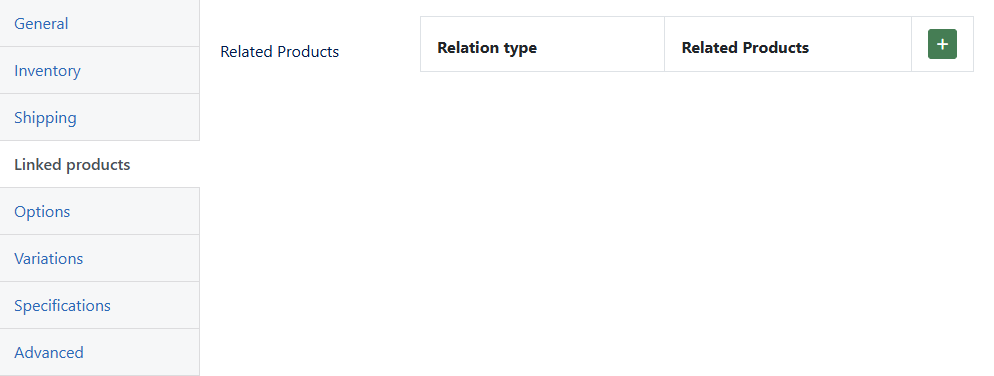
Related products, shown on the product page. Press + to add one, then choose its relation type and the product.
Options
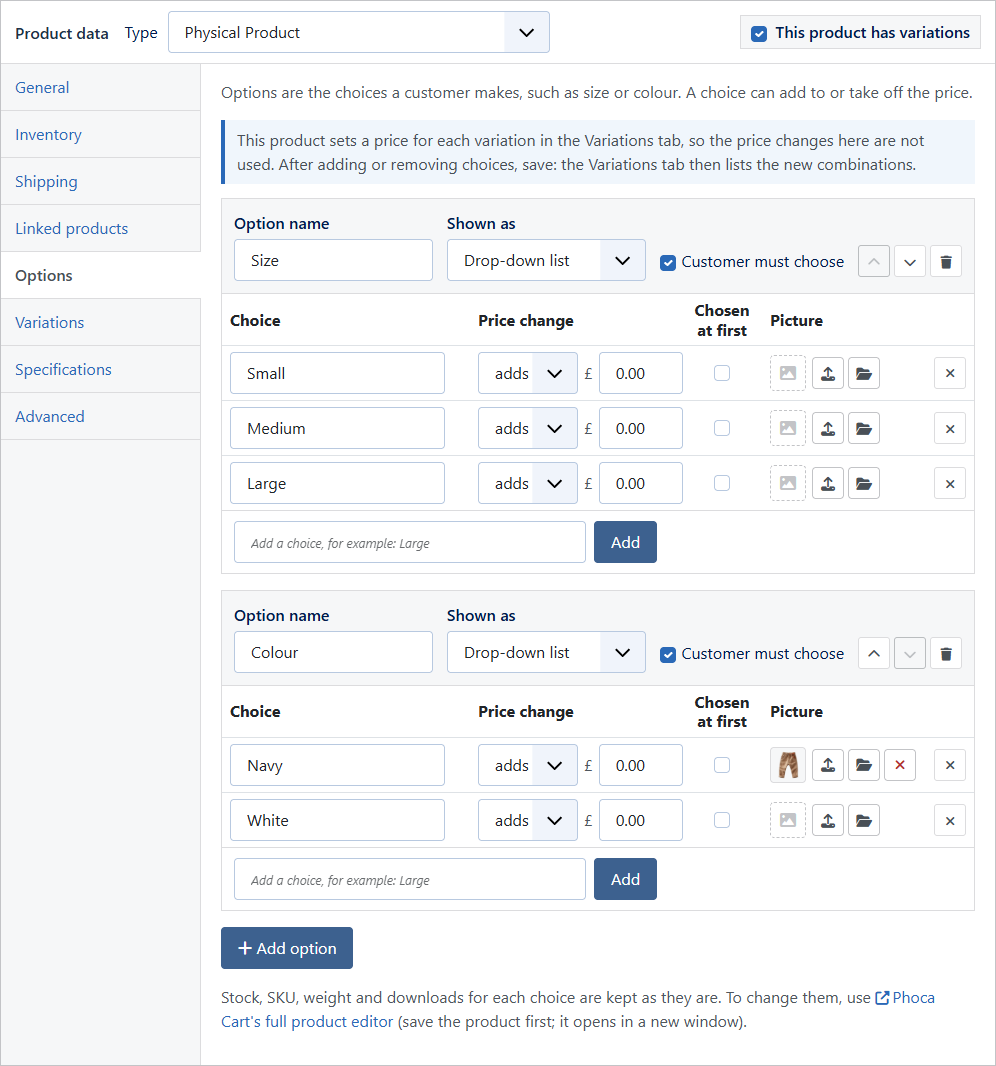
The choices a customer makes. For each option: its name, how it is shown (drop-down list, colour or picture swatches, tick boxes, customer text…) and whether the customer must choose. For each choice: its name, a price change (adds or takes off), whether it is chosen at first and, for colour swatches, its colour. Add choices with Add, reorder options with the arrows, remove with the bin or ×.
Each choice can have a Picture, used for example when the option is shown as picture swatches (see Pictures for choices and specifications).
A choice that has its own stock or SKU (set in Phoca's editor) is marked kept: Easy Edit carries those details through every save.
Variations
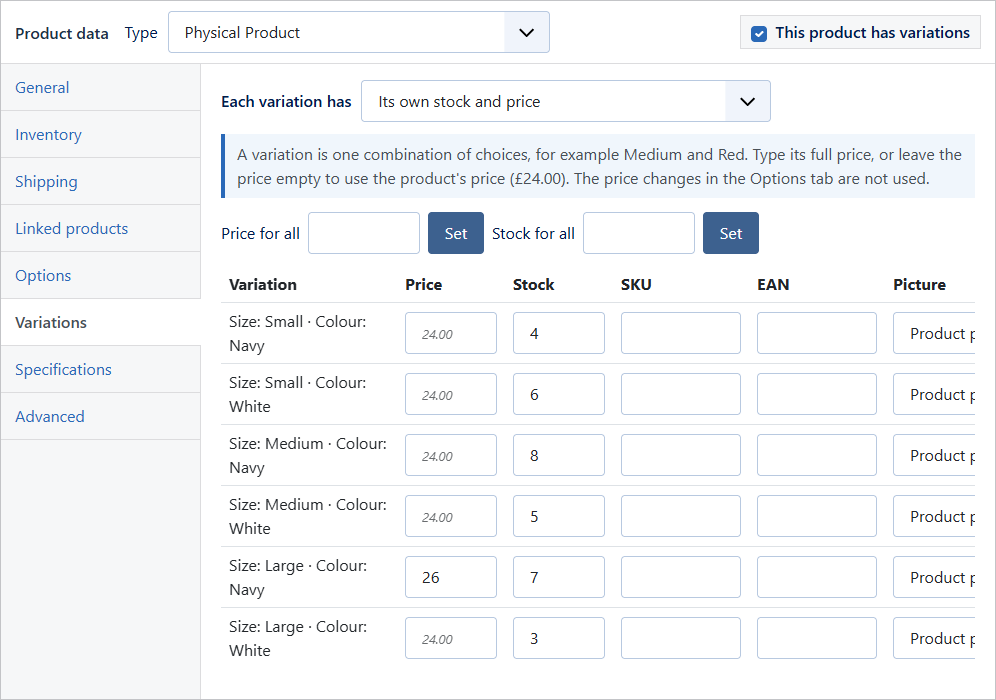
- Add the options and choices in the Options tab and Save.
- Tick This product has variations at the top of the Product data box and Save again. The Variations tab lists every combination of the saved choices.
- Choose what each variation has: its own stock and price, or its own stock with the price from the Options tab.
- Fill in each variation's stock and, if you want, its own price, SKU, EAN and picture. Price for all and Stock for all fill every row at once. An empty price means the product's own price.
- Save.
After adding or removing choices, save once: the Variations tab then lists the new combinations, and rows for removed choices are tidied away.
Specifications
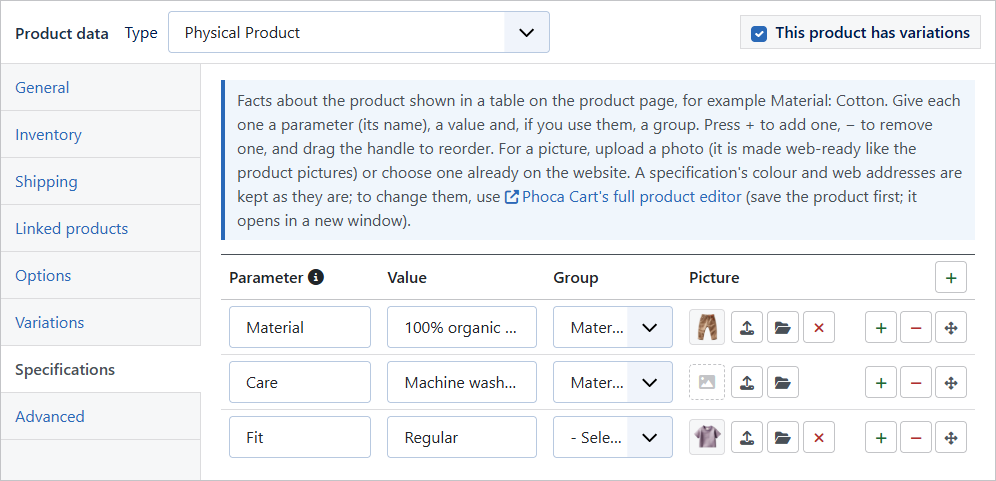
Facts about the product that Phoca Cart shows in a table on the product page, for example Material: Organic cotton or Fit: Regular.
- Open the Specifications tab.
- Press + to add a specification. Type its Parameter (its name) and its Value, and choose a Group if your shop uses specification groups.
- If you like, give it a Picture (see Pictures for choices and specifications).
- Press − to remove one, or drag the handle on the left to change the order.
- Save.
This is Phoca Cart's own specifications field. A specification can also have a colour and web addresses; Easy Edit keeps those as they are and leaves them out of sight (change them in Phoca's full editor). When you change a parameter or value, its web address is renewed from the new text when you save, so the shop's filter links stay correct.
Advanced
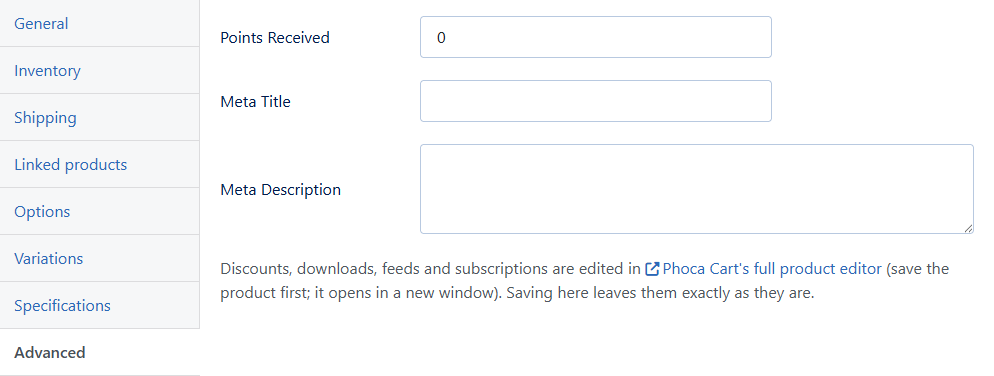
Reward points (Points Received), and the Meta Title and Meta Description that search engines show. A note reminds you that discounts, downloads, feeds and subscriptions are edited in Phoca's full editor and kept as they are.