For shops with more than one VAT rate, for example adult clothing at 20% and children's clothing at 0%.
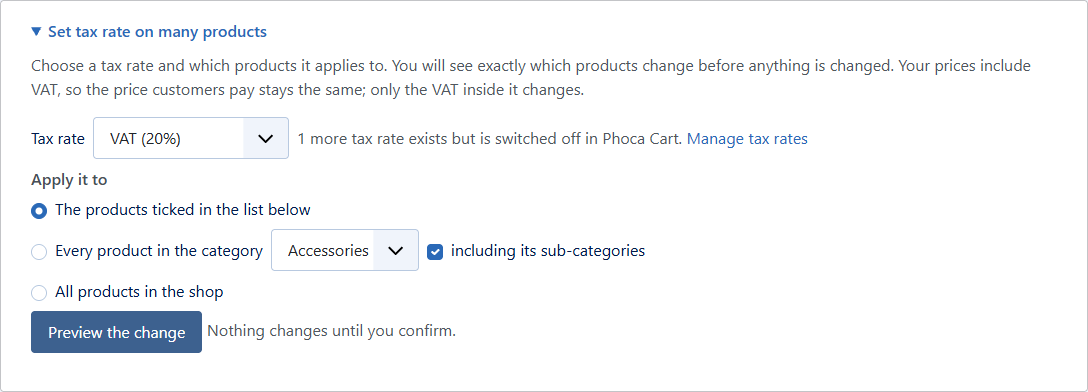
- On the product list, open Set tax rate on many products.
- Choose the tax rate. Only rates switched on in Phoca Cart are offered; the panel says how many others exist and links to them.
- Choose what it applies to: the products ticked in the list, every product in a category (sub-categories included if ticked), or all products.
- Press Preview the change. Nothing changes yet.
- Check the box that appears: the rate, how many products change, and their names.
- Press Change N products to apply it, or Cancel to leave everything as it was.
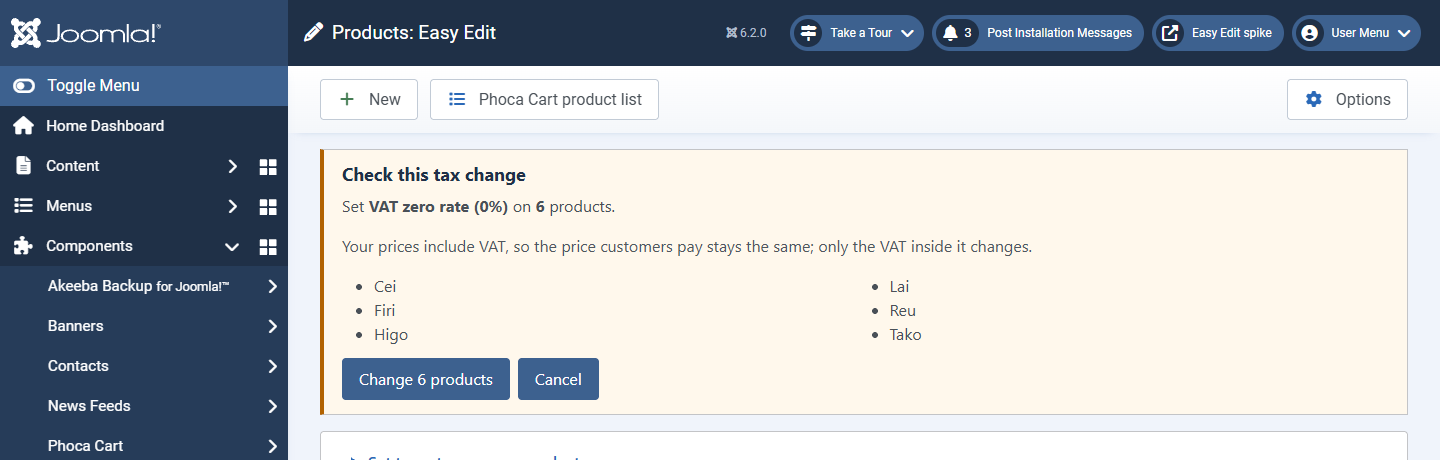
Only the tax rate changes. When your prices include VAT (Phoca Cart's usual UK setting), the price customers pay stays the same and only the VAT inside it changes; the box says so. The change goes through Phoca Cart's own batch tool, one product at a time, with its permission checks.