Open Easy Edit's Options (top right of the product list), then the Permissions tab, and choose a staff group.
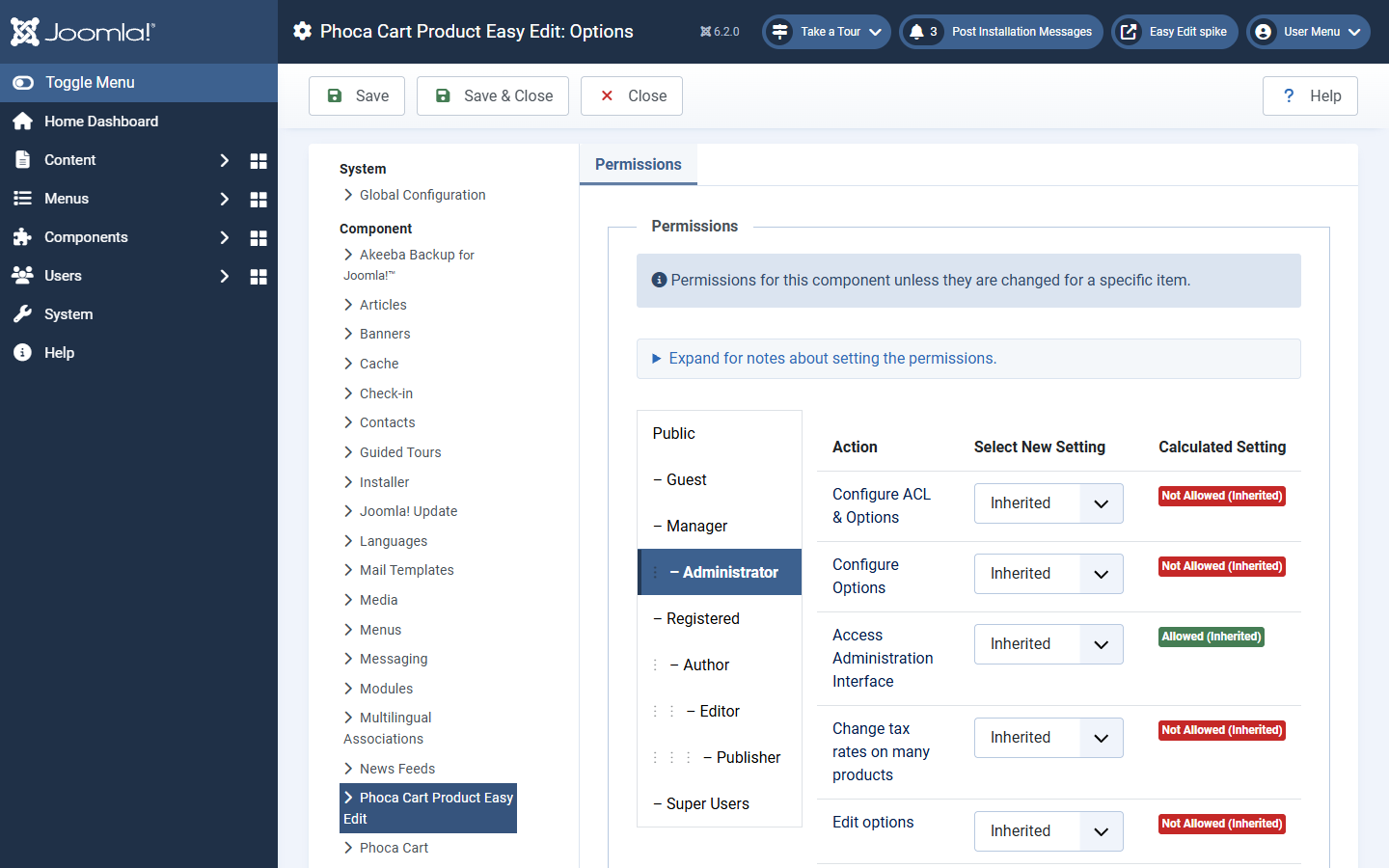
| Permission | Without it |
|---|---|
| Change tax rates on many products | No tax panel or tick boxes on the list. |
| Edit options | No Options tab; options stay as they are. |
| Edit variations | No "This product has variations" tick or Variations tab. |
| Add and change pictures | Pictures are shown but cannot be changed: the product's pictures and the pictures of option choices and specifications. Uploads are refused. |
| Edit specifications | No Specifications tab; specifications stay as they are. |
| Advanced tab | No Advanced tab; reward points and search engine texts stay as they are. |
| Create tags and labels | Only existing tags and labels can be picked; a typed name is not added. Phoca Cart's own Create permission (and its Advanced - Tags permission, when its advanced permissions are on) is needed as well. |
| Links to Phoca Cart's own screens | No links to Phoca's full editor or product list: a simpler screen. |
As Joomla does for every extension's own permissions, only Super Users have these eight until you allow them for other groups. Creating and editing products is still governed by Phoca Cart's own permissions; when Phoca Cart's Use advanced permissions is switched on, its Advanced - Products permission is needed too. Setting up staff access shows how, with examples.