The preview in the middle of the editor is your real site, drawn with the layout as it is on screen right now. You do not have to publish to see a change. This page shows how to use the preview, and how to see the page the way a visitor sees it.
What the preview is
The preview is a frame that loads a real page of your site, with your template, your modules and your colours. It shows your unpublished changes, so it is a safe place to try ideas. Nothing is saved to the live site until you press Publish.
The unpublished layout is sent along with each preview request, and it is not stored in a template style. The preview address works only for you, while you are signed in, so other people cannot use it to see your draft.
The preview tools
- Preview width: choose Phone, Tablet, Laptop, Desktop, Wide or Large screen. Their titles give the widths: 390, 768, 992, 1,200, 1,400 and 1,920 pixels. The first five are named after the width settings of the Selected item tab, so the button Laptop shows you what the Laptop settings do. Large screen is a bigger screen that still uses the Wide settings. A line under the preview says which width settings apply at the size you chose.
- Page: choose which page of your site to preview. A page that uses this layout is marked "(uses this layout)". The box starts on a page that is not an article when your site has one, and the editor says so.
- Live page: this button opens the published version in a new tab, without your unpublished changes.
- Click a part: click anywhere in the preview, and that section, row, column or position is selected in the outline and in the settings.
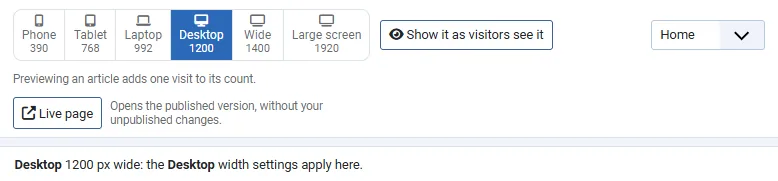
Tip. Previewing a page that shows one article adds one visit to that article's count, because Joomla counts every request. The editor says "Previewing an article adds one visit to its count."
Empty positions in the preview
An empty position shows as a box that says "This position is empty. Add a module to it under Modules." Put a module in that position under Modules, and reload the builder. The box is replaced by the real module.
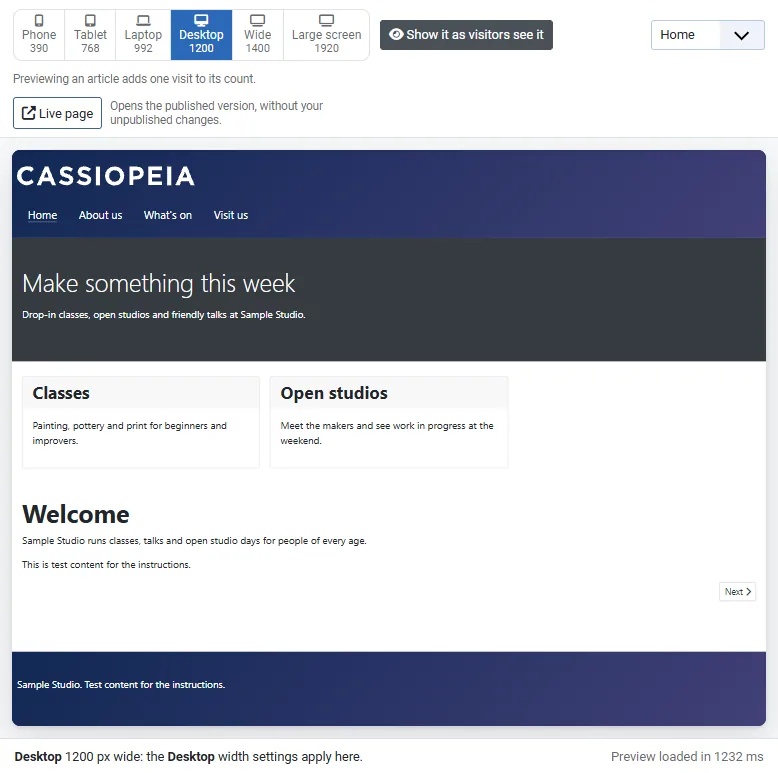
Show it as visitors see it
The boxes help you to find and fill empty parts, but a visitor does not see them. The button Show it as visitors see it, above the preview, draws the page the way a visitor's page is drawn. Empty positions, columns, sections, rows and sidebars are left out instead of shown as boxes, so you can see where the content takes the full width. You can still click a part to select it. Press the button again to go back to the boxes.
The visitor view leaves out the empty boxes and keeps only small marks that let you click a part. See Empty parts print nothing for what counts as empty.
Messages you may see
- "The builder preview shows the standard page because the layout on screen cannot be drawn yet." The layout on screen has a problem, so open the Layout tab to read the Checks.
- "The preview is showing the published page, not your changes. Reload the builder." The preview needs a reload before it shows your changes again.
Try it
- Open a layout in the editor.
- Press Phone above the preview, and then Desktop. The preview frame changes size.
- Click a column in the preview. Its settings open on the right.
- Change the Background of a section, and watch the preview update.
- Open Modules, put a module in a position that is empty, and reload the builder. The box is replaced by the module.
- Press Show it as visitors see it, and then press it again.