Every time you change a layout, the editor checks it. The results are on the Layout tab, in plain words. A problem stops you from publishing, but a warning never does.
Where to find the checks
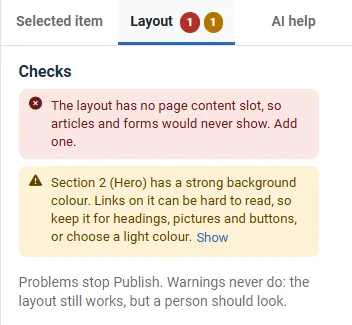
Open the Layout tab on the right of the editor. The section Checks is at the top, and the name of the tab also shows how many there are: a red number for problems and an amber number for warnings. A screen reader reads them as, for example, "2 problems to fix" or "1 warning".
- When all is well, the tab says one of these: "Everything looks right: one page content slot, unique IDs, no duplicate positions." for pages, "Everything looks right: one error message, unique IDs, no duplicate positions." for error pages, or "Everything looks right: one offline notice and login." for the offline page.
- Otherwise it lists each problem or warning, marked with a red icon (problem) or an amber icon (warning), with the place that it is about, such as "Section 2, row 3 (Story), column 2", or "Section 2 (Component), column 2" for a part of the Component. Where there is a Show button next to it, press it to select that part of the layout. A problem about a part that is missing, such as the page content, has nothing to show, so it has no button.
The hint under the list says "Problems stop Publish. Warnings never do: the layout still works, but a person should look."
The same rules everywhere
The checks that you see in the editor are the same rules that run when you press Publish, when you save a style in Joomla's own style screen, and when you import a layout file. There is no second set of rules in the editor. If Publish is refused, the editor shows the reason and opens the Layout tab.
Examples of problems
Each problem says what is wrong and what to do, and these are some that you may meet.
- "The layout has no page content slot, so articles and forms would never show. Add one."
- "Only one section, row or column can be the main content area."
- "The error page layout has no error block, so visitors would not be told what went wrong. Add one."
- "The offline page layout has no offline block, so nobody could log in while the site is offline. Add one."
- "The position ... is used twice in this layout. Its modules would show twice."
- "The position ... is already drawn by the site header or footer. Pick another name."
- "A layout can have at most 40 sections." The same limit appears for columns and items, and the message gives the number.
Examples of warnings
- "These positions have names that do not say what they hold: ..." A name like column-2, row-2, position or three-columns-a is fine for the page, but hard to find in the Module manager. Rename each one after its job (mainmenu, footermenu, hero, opening-hours) before you assign modules to it. This never stops Publish.
- "The layout has no standard header, so the site logo and menu will not be shown." You see this only when the layout has neither Cassiopeia's header nor a header of its own: a section whose page element is Header band, or an older Navigation section holding a module position. A section that holds only the breadcrumb trail is not a header.
- "The layout has 2 site navigations. Keep one: switch Site navigation off on the others." Also "... is the site navigation but is not inside a Header band section" and "... is a Navigation section, an older way of placing the menu". As in Cassiopeia, the header holds the navigation. These never stop Publish, so an older layout keeps working. See The site navigation.
- "The layout has no standard footer, so the footer position will not be shown."
- "... has a strong background colour. Links on it can be hard to read, so keep it for headings, pictures and buttons, or choose a light colour."
- "The layout would show more than one ... area for the whole page." This is about page banners and footers. People who use a screen reader would meet two banners. Choose the element Page part or Plain box instead.
- "... has no columns, so it shows nothing." and "... has nothing in it, so it shows nothing."
The boxes that you type in
Three boxes take text that you type: an ID, the Classes and a Position name. The boxes are checked as you type, and when you leave a box with something that is not allowed, it keeps its old value, and a message that starts with "Not changed:" says why.
| Box | The rule |
|---|---|
| ID | It starts with a letter, then uses only letters, digits, hyphens and underscores. It can be up to 40 characters long. It must be unique on the page. IDs that start with wbl-, mod-, com-, system-, jform, cassiopeia or bs- belong to Webal, Joomla or Cassiopeia, and so do a few names that the page itself uses, such as top. The message tells you when a name is taken. |
| Classes | Each class starts with a letter or an underscore, then uses letters, digits, hyphens or underscores. Separate classes with a space. Up to 200 characters in all. Any class you type is printed exactly as you typed it. |
| Position name | Lower-case letters, digits, hyphens and underscores, up to 60 characters. Not a name that the header or footer draws, and not a name that is used twice. |
The server judges every typed box again when you publish, so a box cannot get past the rules by any other route.
Try it
- Open a layout in the editor and open the Layout tab. Read the Checks, which should say that everything looks right.
- In the outline, click Page content, and press Delete.
- Read the new problem on the Layout tab. It has no Show button, because the part that it is about is missing.
- Press Publish, and see that it is refused, with the reason.
- Press Undo to bring the page content back.
- Click a section, and set its Background to Primary. A warning about a strong background colour appears, and Publish still works.