The AI help tab lets you ask an AI assistant, such as Claude, ChatGPT or Gemini, to design a layout for you. You copy a text from the builder into the assistant, describe the page in your own words, and paste the answer back. The builder checks the answer before it uses it, and nothing goes live until you press Publish.
The builder sends nothing itself
The builder never talks to an AI service, and you never give it a key or a password for one. You do the copying and pasting yourself, so you always see what leaves your site and what comes back.
The text you copy holds the layout rules, the layout format and the layout that is on screen. It holds no module content, pages, users or site address.
Open the tab
- Open Components, then Webal Layouts, and press Open in the builder beside a layout.
- Choose the page type at the top: Pages, 404 and errors or Offline. The tab works on that page type only, and leaves the other two alone.
- In the settings panel on the right, press AI help. It is beside Selected item and Layout.
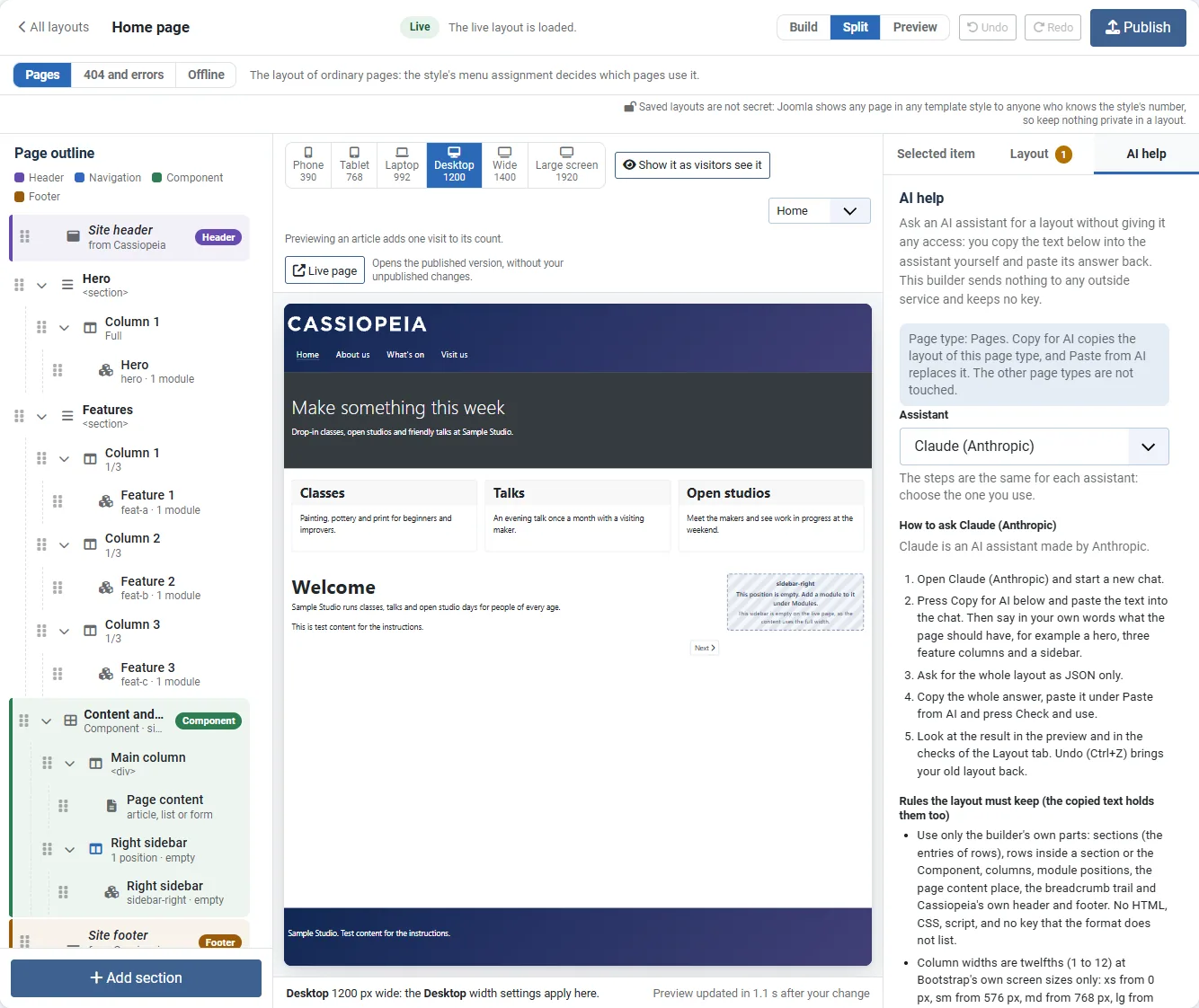
Ask the assistant
- In Assistant, choose the one you use: Claude (Anthropic), ChatGPT (OpenAI) or Gemini (Google). The steps are the same for each, and the builder remembers your choice.
- Open the assistant in another browser tab and start a new chat.
- Press Copy for AI. The screen says "Copied. Paste it into a new chat with the assistant." If your browser cannot copy by itself, the text is selected for you: press Ctrl+C.
- Paste the text into the chat. Then say in your own words what the page should have, for example "a hero, three feature columns and a sidebar with two positions".
- Ask for the whole layout as JSON only. The copied text already asks for this, but saying it again helps.
Paste the answer back
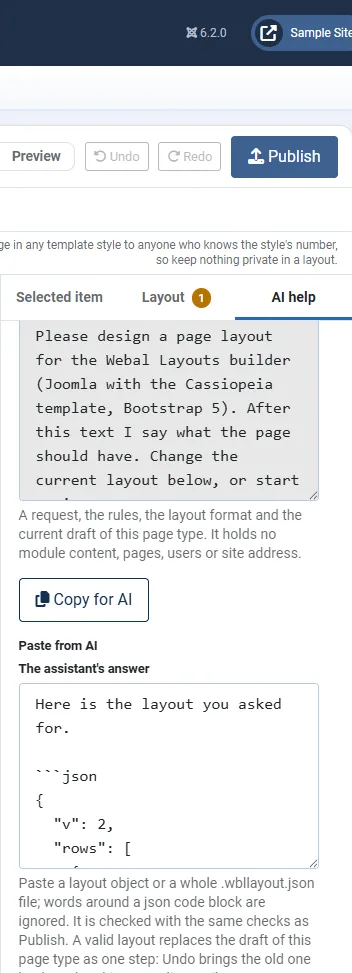
- Copy the whole answer from the assistant. Words around the code are fine: the builder looks for the layout inside them.
- Back in the builder, paste it under Paste from AI, into The assistant's answer.
- Press Check and use.
If the layout passes the checks, it becomes your draft and the screen says "The layout from the assistant is now the draft. Look at the preview, then Publish, or Undo to go back." The preview shows the new layout, and the yellow banner reminds you that it is not live yet.
Copy for AI, paste the text into an assistant, then paste its answer back and press Check and use: a short video with no sound. Its steps:
- Press AI help.
- In the list Assistant, choose Claude (Anthropic).
- Press Copy for AI.
- The screen says Copied.
- In your assistant, paste the text into a new chat and describe the page.
- Paste the assistant's whole answer into The assistant's answer.
- Press Check and use.
- The screen says the layout from the assistant is now the draft.
- In the outline, the new News section with its sidebar is under Features.
- Press Undo to go back to the layout before.
When an answer is refused
Nothing changes when an answer is refused, and the message says why. For example:
- "No layout was found in the answer: it holds no JSON object that can be read." Ask the assistant for the layout as JSON only, and paste the whole answer.
- "The layout in the answer does not pass the checks, so it was not used and nothing changed. Ask the assistant to fix these problems:" followed by the problems, such as "The layout has 2 page content slots. It needs exactly one."
Copy the problems into the chat and ask the assistant to fix them. Your answer stays in the box, so you can paste over it when the new one comes.
Check the result before you publish
- Look at the preview at each width: Phone, Tablet, Laptop, Desktop, Wide and Large screen.
- Open the Layout tab and read the checks. A problem stops Publish; a warning does not.
- If you do not like it, press Undo (Ctrl+Z). Your old layout comes back in one step.
- When you are happy, press Publish.
The rules a layout keeps
The tab lists the rules, and the copied text holds them too, so the assistant knows them. In short:
- Only the builder's own parts: sections, columns, rows inside a section or the Component, module positions, the page content place, the breadcrumb trail and Cassiopeia's own header and footer. No HTML, CSS or script.
- The builder's words for the format: a Section is an entry in
rows; the Component is the section withnativeset to true; a Row is an entry in a column'srows. The assistant is asked to use these words when it explains the layout. - Rows go in the main column of the Component, or in the one column of any other section, on the page type Pages only, one level deep.
- Column widths in twelfths, at Bootstrap's own screen sizes only.
- Exactly one page content place (or one error block, or one offline block on those page types).
- Each module position name and each ID used once.
- Parts in reading order, so the headings that the modules and the page content print run from one h1 downwards with no skipped level.
Rows and pictures in the format
You do not need to read the format, because the copied text explains it to the assistant. If you want to check an answer by eye, these are the parts that hold rows in a section and a background picture.
- A section holds rows when its one column has the width
"xs": 12and nothing else, has norole, and the section does not use equal columns. The rows go in that column'srows:{ "tag": "section", "cols": [ { "w": { "xs": 12 }, "rows": [ { "cols": [ ... ] }, { "cols": [ ... ] } ] } ] } - A background picture is the section key
img, a path underimages/, for example"img": "images/menu/counter.jpg". The shade is the keyshade:""(none),"dark"or"light". Both keys are stored only when a picture is set, and only on a section, not on a row. - Modules per row needs no key of its own: it is the width
wof each column, for example{ "xs": 12, "md": 6, "lg": 4 }for Phone 1, Tablet 2 and Laptop 3. - The key
vis 3 when the layout holds any rows, and 2 when it holds none.
Layouts saved before these features print exactly as they did.
The Webal design systems
The tab links to the Webal Blocks design system, and the copied text includes the link, so the assistant can follow the Webal look. It is a Claude Design system that shows the colours, type and parts of Webal Blocks. See Building a site with AI for how to use it from the first drawing.
Try it
- Open a layout in the builder and press AI help.
- Press Copy for AI and paste the text into a new chat with your assistant.
- Type "Add the Component with a sidebar on the right, with two positions", and ask for the layout as JSON only.
- Paste the answer under Paste from AI and press Check and use.
- Look at the preview, then press Undo to go back.