You can save a layout as a small file and bring it into another site, or into the same site as a new layout. This is useful for a copy on a test site, a backup, or a layout that you reuse on several sites.
Export a layout
There are two ways to start an export, one in the editor and one on the list of layouts.
- In the editor, open the Layout tab. Under Layout actions, press Export this layout.
- On the Webal Layouts list, open Duplicate, rename, delete in the row of the layout, and press Export.
Your browser downloads a file that is called the name of the layout, followed by .wbllayout.json, and you keep it wherever you like.
What is in the file
- Only the published layouts of that style, which are the layouts for pages, error pages and the offline page, so unpublished changes are not in it.
- Nothing about your modules, pages, users or site.
If nothing is published yet, the screen says "This layout has nothing published to export yet. Publish it in the builder first."
Import a layout
- Open Components, then Webal Layouts.
- Press Import a layout, at the top of the list.
- Choose the file in Layout file. Its name ends in
.wbllayout.json. - Press Import.
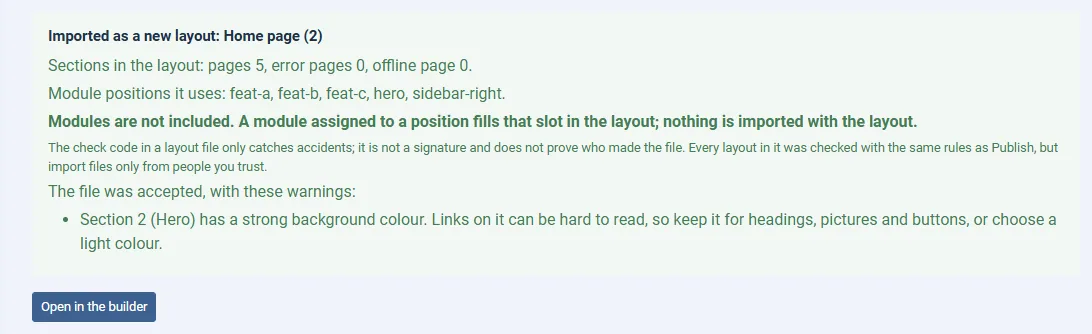
The file is checked with the same rules as Publish, and then saved as a new layout, so layouts that you already have are never changed. If the name is already taken, the new layout gets "(2)" after its name.
The result says "Imported as a new layout" with its name, and then lists:
- how many sections the layout has, for pages, error pages and the offline page,
- the module positions that it uses, and
- this reminder: "Modules are not included. A module assigned to a position fills that slot in the layout; nothing is imported with the layout."
So after an import, open Modules and assign your modules to the positions that the layout uses, and if the file was accepted with warnings, they are listed too.
When a file is refused
Nothing is created when a file is refused, and the message says why, for example in one of these ways.
- "This file was not made by Webal Layouts Export, so it was not imported."
- "The layouts in this file do not match the check code in it, so the file was changed or damaged after it was exported. Nothing was imported." This is what you see if someone edits the file by hand.
- "The layouts in this file use a newer layout format ... Update Webal Layouts, then import it again. Nothing was imported."
- "A layout in the file cannot be used, so nothing was imported." The message then says which layout and why.
- "This site has no theme that draws Webal layouts (the Webal Layouts child theme is not installed or is switched off), so a layout cannot be imported. Install or switch on the theme first."
Import files only from people you trust
The check code in a layout file only catches accidents. It is not a signature, and it does not prove who made the file. Every layout in it is checked with the same rules as Publish, but you should import files only from people you trust.
Try it
- Open a layout that is published, and open the Layout tab.
- Press Export this layout. A file ending in
.wbllayout.jsondownloads. - Press All layouts, then Import a layout. Choose that file and press Import.
- Read the result. A new layout, with "(2)" after the name, is on the list.