Webal Layouts does not need Webal Blocks, but the two work well together. This page says what we tested, how to use the Wide page width, and where to put the Anchor strip so that it stays where it should.
What we tested
On 4 November 2026 we rebuilt the pages of a test site for a fictional arts centre in the layout editor. We compared each page with the same page built by hand with Cassiopeia's own positions. The test covered the home page, an article page with a sidebar, a contact page, a page with full-width and narrow bands, the 404 page and the offline page.
- The home page, the article page, the contact page and the bands page looked the same as their hand-built twins at seven screen widths from 320 to 2,560 pixels in light colours, and at three widths in dark colours. We found no difference that a person could see. A computer check that is much stricter than the eye found a difference of one shade in a single dot on five pictures, and a difference on one more picture that did not come back when we repeated it. The 404 and offline layouts are designs of their own, so we compared their sizes and not their pictures.
- The layout pages loaded the same style sheets and scripts as the hand-built pages, and an automatic accessibility checker found no new violations.
We also checked these Webal Blocks features on a layout page and on a hand-built page. The result was the same on both.
- The navbar that stays visible, and the navbar that appears when you scroll up.
- A transparent navbar over a hero.
- The mobile menu panel on a phone.
- A mega menu opening over a slideshow.
- A slideshow and a cards module in layout sections.
- The privacy banner and the map and Facebook feed, which wait for consent.
- The colour mode switch, with the dark colours of Cassiopeia.
- The back to top button.
- A right-to-left language, tested with a mirrored test language. The mirrored layout page looked the same as the hand-built page.
- Page transitions.
One thing we saw is the same on both kinds of page, so it belongs to the navbar and not to layouts. With the navbar set to be transparent over the hero, the link "Opening hours" in the top bar was dark text on the dark hero.
Known limits of this test. We did not put the Webal carousel, tabs or accordion modules into layout sections beyond what the test pages use. We did not run Lighthouse speed scores for layout pages, because the machine was busy and the number would not be fair.
The Wide page width
Webal Blocks adds a setting called Page width to a template style. It has two choices: Normal (1,320 px) and Wide (1,464 px). It matters only while the Layout setting of the style is Static. Layouts drawn by Webal Layouts follow it. On a test page at 1,920 pixels wide, the main column was 1,320 pixels wide with Normal and 1,464 with Wide.
- The themes Cassiopeia - Webal and Cassiopeia - Webal Layouts always have the setting, while Webal Blocks is installed.
- For another child theme of Cassiopeia, the setting is off, so that installing Webal Blocks does not change the screens of your own themes. To turn it on, open System, then Manage, then Plugins, and open System - Webal Site. In the part called Webal Blocks settings, switch on Page width on other Cassiopeia child themes. Then the style of your child theme has the choice Page width on its Advanced tab.
Stock Cassiopeia never gets the setting.
The Anchor strip
The Anchor strip is a bar of up to five links that is fixed to the bottom edge of a phone screen. It is a Menu module with the layout Webal anchor strip. Anchor strip shows how to make one.
Do not put it in a position that Cassiopeia draws inside its header. Those positions are topbar, below-top, menu and search. If your navbar slides away and back as people scroll up, a strip in the header moves with it, and for a moment it jumps to the top of the page.
We measured this on a phone-sized page. We scrolled down, then up in small steps, and checked every frame of the animation. The table shows the frames in which the strip was not on the bottom edge.
| Where the strip was | Frames off the bottom edge |
|---|---|
Page built by hand, in below-top, inside the header | 52 of 125 |
Layout page, in below-top, drawn by the site header section | 52 of 126 |
Page built by hand, in main-bottom | 0 of 126 |
| Layout page, in a section of its own | 0 of 127 |
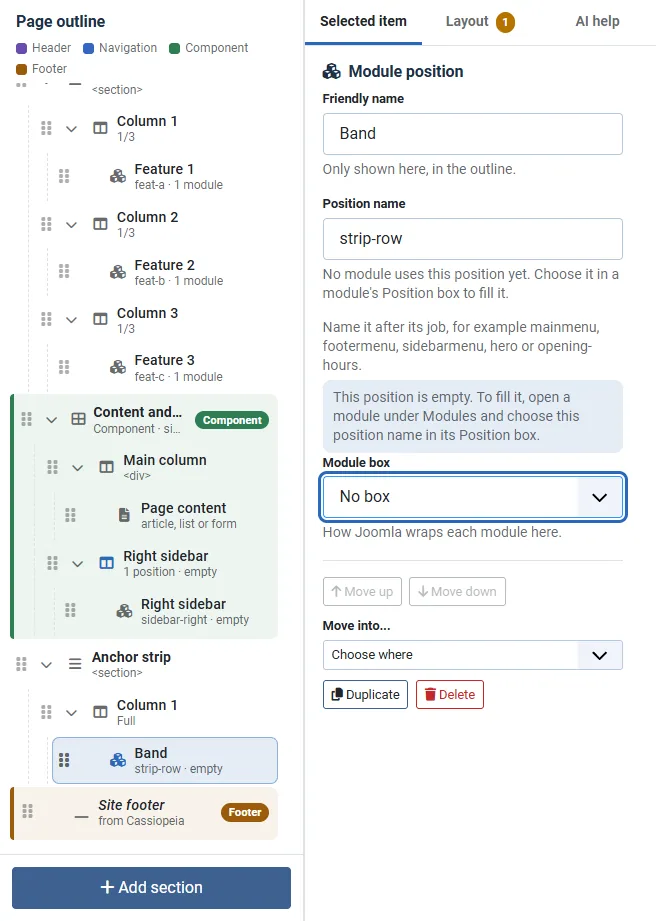
The editor has no way to put a module into the site header, because the header is Cassiopeia's own. So in a layout, give the strip a section of its own.
- In the editor, press Add section and choose Colour band.
- Set its Background to None, and Space above, Space below and Gap between columns to None, so the section adds no visible space.
- Click the position inside the section. Type
strip-rowin Position name, and choose No box in Module box. - Press Publish.
- Open the Menu module of your Anchor strip under Modules, and choose the position
strip-row.
You can also add a position called main-bottom to your layout and use that. A layout draws only the positions that it lists, apart from the ones that the site header and footer draw.
If an Anchor strip module is in one of the four header positions, the Webal Blocks Dashboard warns you under Things to look at. It says that the strip "may jump with it instead of staying at the bottom edge of the screen" and names positions outside the header: main-bottom, main-top or footer.

Try it
- Open a layout in the editor, and press Add section, then Colour band.
- Click the position inside the new section, type
strip-rowin Position name, and choose No box in Module box. - Press Publish.
If an Anchor strip module is ever put in one of the four header positions, open Components, Webal Blocks, Dashboard, and look under Things to look at. The warning is there.