A layout is one arrangement of the product page. One layout serves every product it applies to: a part a product does not have (no video, no reviews) simply prints nothing for that product.
The layouts list
"Components, Webal Phoca Pages" opens the list. Each saved layout shows its name, whether it is the Default and whether it has Unpublished changes, with these buttons:
- Open in the builder: edit it (see The builder).
- More actions…: Duplicate, Rename, Export as a file, and Offer on menu items (or Stop offering on menu items).
- Delete…: asks you to confirm first. Deleting a layout also removes the category rules that use it, and the message says how many.
Start from a starter
Every new layout starts from a starter. Each starter keeps every part of Phoca Cart's product page, so choosing one only changes the arrangement, never what your shop can do. Every starter passes the checks with Phoca Cart's usual settings, so a new layout opens with no problem and no warning; otherwise the checks name the shop setting that needs a change.
- Under New layout, type a name.
- In Start from, choose a starter.
- Press Make and open in the builder.
Phoca's classic
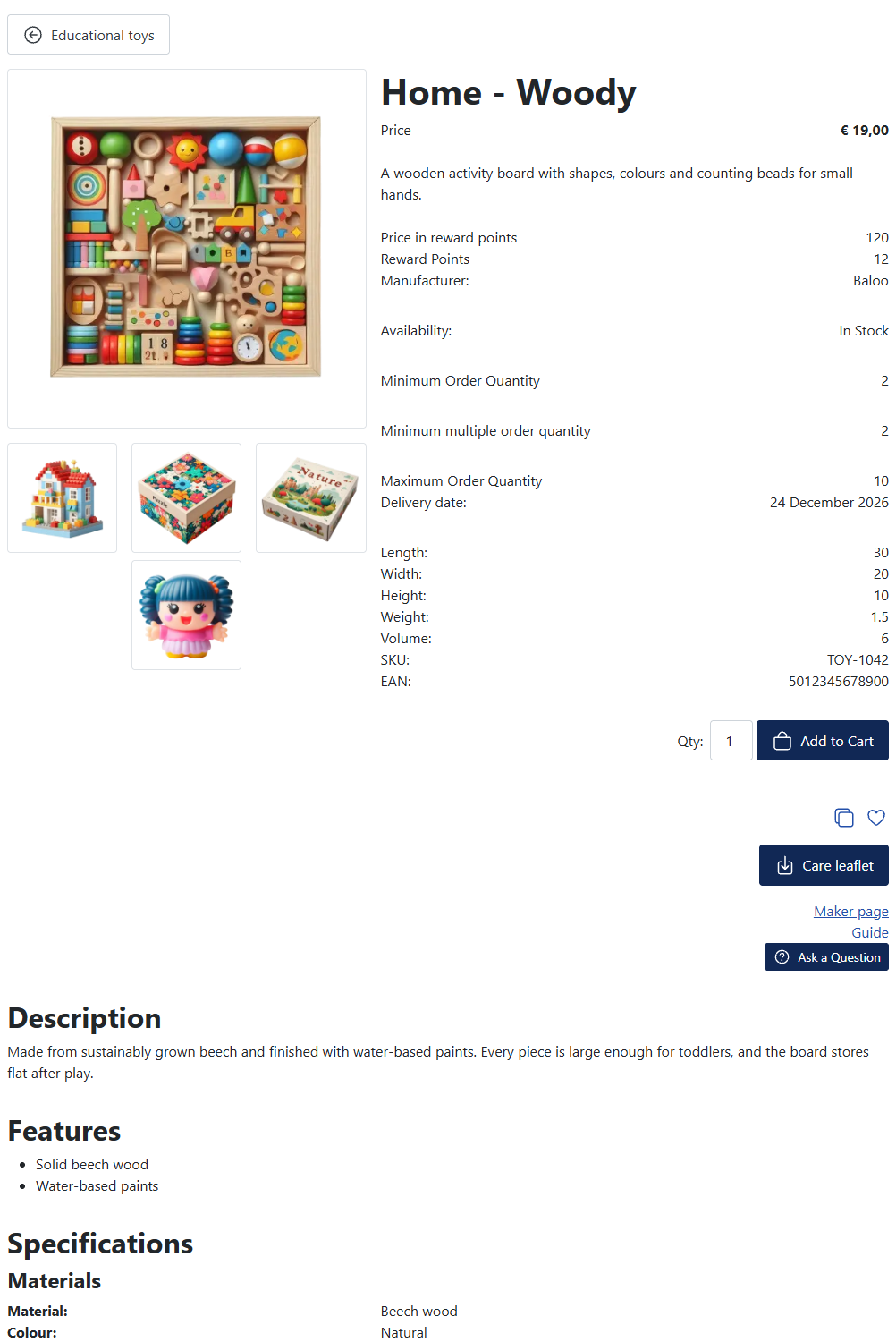
Phoca Cart's own product page, rebuilt from blocks: the gallery beside the price and buying parts, then the description and other content, then previous and next. Choose it to start from what your shop already looks like.
Phoca's classic, plain
Phoca's classic without its six plugin areas (the places where other Phoca Cart plugins can print). Choose it if your shop uses no Phoca Cart plugins of other makers: the outline in the builder is shorter. If such a plugin is ever installed, its output is never lost: every plugin area, the one above the title included, then prints at the end of the page, and the checks note it.
Split with sticky gallery
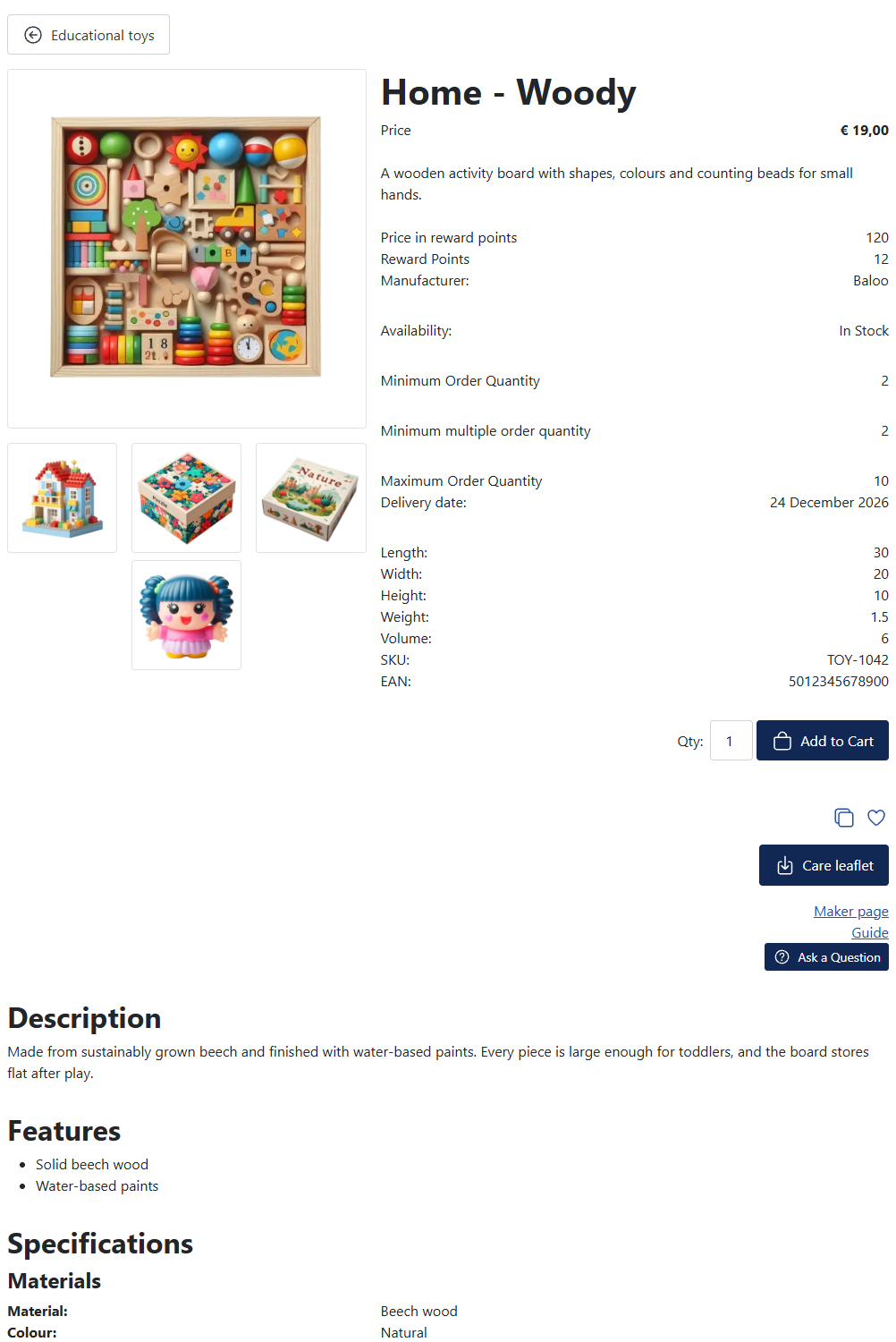
The gallery takes seven twelfths of the width and the buying panel five, from Tablet (768 px) up. The gallery stays in view while you scroll past the buying panel, whose content sits in tabs from Laptop up and in an accordion on smaller screens. The gallery shows dots below Laptop and small pictures beside it from Laptop up. The phone Add to cart bar is on.

Gallery wide
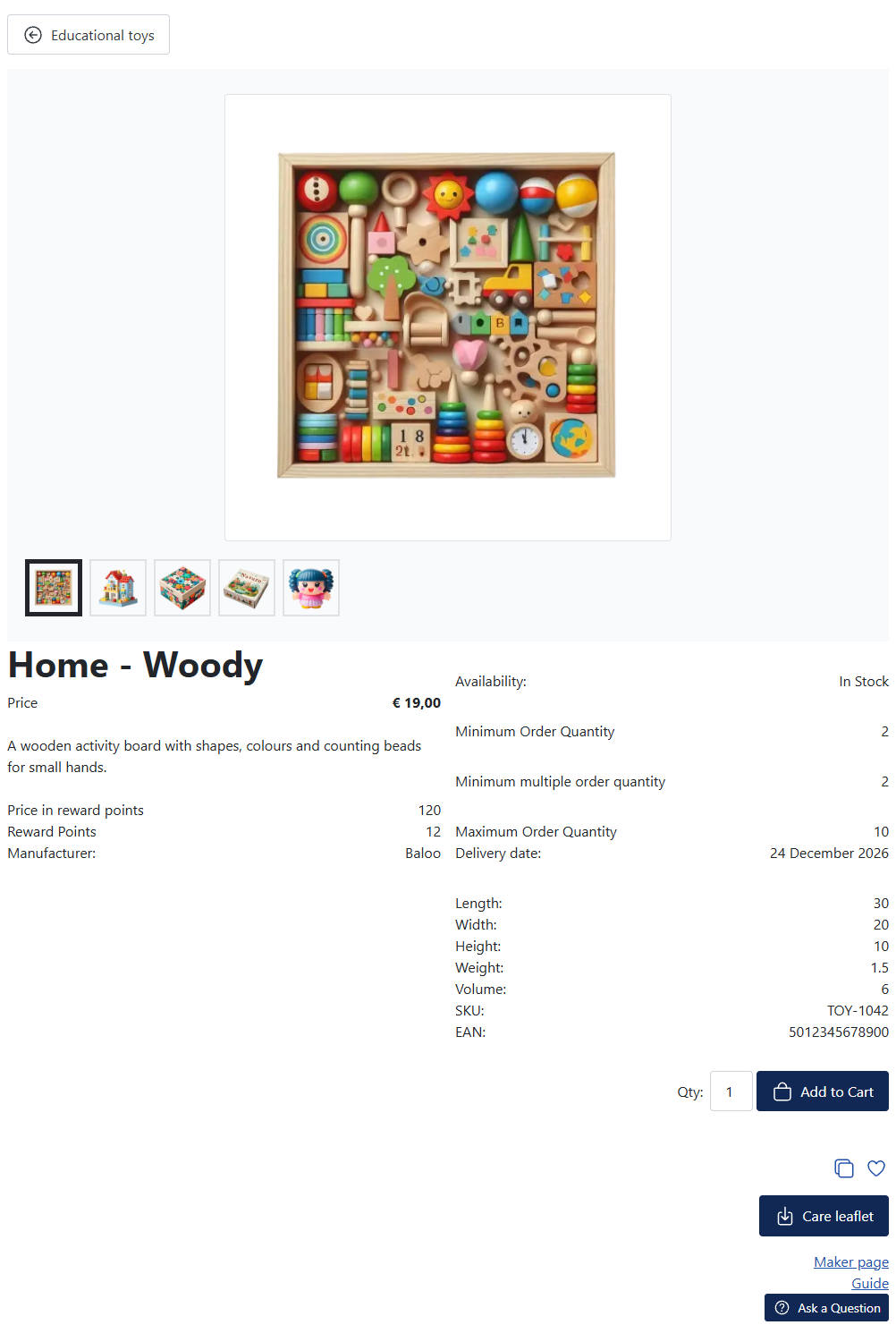
A light band across the whole width holds the gallery, with dots on phones and small pictures below it from Tablet. Below it, the title and price sit beside the buying parts, then every content part follows as a section. The gallery never stretches a picture past its own size, so for this starter raise "Large Image Width" in "Components, Phoca Cart, Options" if your pictures look small.
Story page
For products with a long description. The gallery sits beside the title, the short description, the price and the tags. Then the description, features, video and specification read in a wide column, beside a buying column that stays in view from Laptop up. Reviews, related products and the price history follow in tabs (an accordion below Laptop). The title and the short description are larger than usual. The phone Add to cart bar is on, because on phones Add to cart comes after the long story.

Copy, rename, export and import
- Duplicate makes a copy with a free name.
- Rename asks for the new name.
- Export as a file saves the layout as a file on your computer. Its name ends in ".wblpplayout.json".
- To bring a file back, use Import a layout at the bottom of the list: choose the file in Layout file and press Import the file. The file is checked first and nothing is saved if it has a problem.
Export is also how you keep layouts before updating or uninstalling (see Update it and Uninstall it).
Offer a layout on a menu item
A Phoca Cart product menu item can choose its own layout.
- Press Use on this template first, if you have not.
- In More actions…, press Offer on menu items.
- In "Menus", open or make a Phoca Cart product menu item, press "Select" beside "Menu Item Type", open Phoca Cart and pick the layout's name, shown with its file name in brackets, for example "Toys (wblpp4)".
Stop offering on menu items takes the offer away. A menu item that still names the layout then shows the default layout.
Which layout wins when several could apply is explained in Category rules.
Next: The builder.