A category rule gives the products of one Phoca Cart category a layout of their own.
Which layout a product uses
For each product page, the first of these that applies wins:
| Order | What | Set where |
|---|---|---|
| 1 | The layout a menu item chose | the menu item (Layouts) |
| 2 | The rule of the product's category | Category rules on the layouts list |
| 3 | The default layout | Default layout on the layouts list |
| 4 | Phoca's own page | nothing applies |
The product's category is the one the page shows it in. A product in several categories uses the category the visitor came through, or else the first category Phoca Cart gives it (the one its breadcrumbs show).
Add or change a rule
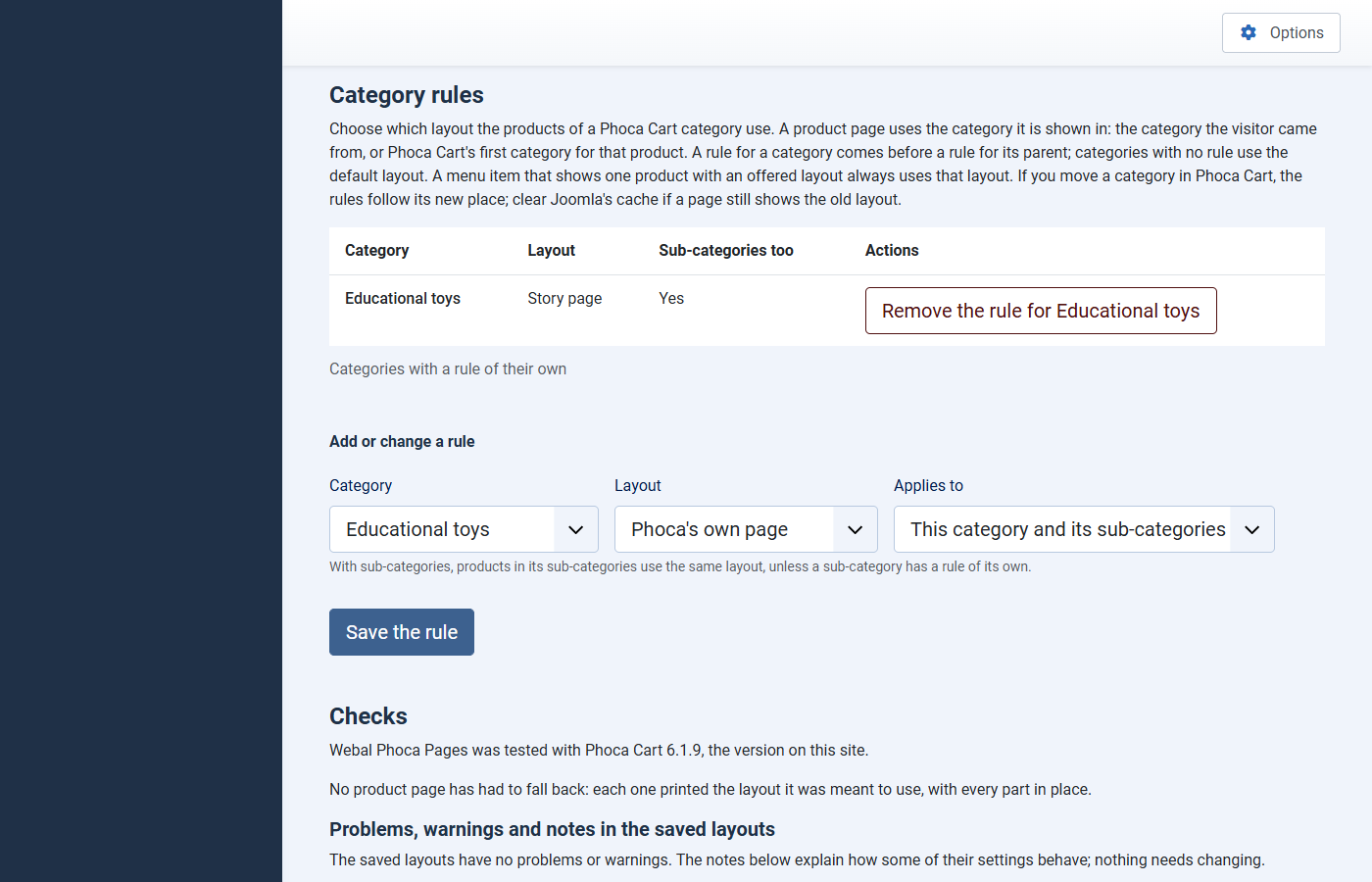
- Under Category rules, go to Add or change a rule.
- In Category, choose the category. Sub-categories show with their path, for example "Toys / Outdoor".
- In Layout, choose a layout, or Phoca's own page.
- In Applies to, choose This category and its sub-categories or This category only.
- Press Save the rule. A message says the rule is saved, and the rule shows in the list above the form.
To remove a rule, press its remove button in the list. Its products then follow the next rule, or the default layout.
Watch it: give a category its own layout
A video of about 22 seconds, with no sound (MP4; also as WebM). Its steps:
- On the layouts list, go to Category rules.
- Under Add or change a rule, choose the Category.
- In Layout, choose a layout: here Story page.
- In Applies to, keep This category and its sub-categories, or choose This category only.
- Press Save the rule.
- A message says the rule is saved.
- The rule shows in the list above the form.
Sub-categories
With This category and its sub-categories, every category under it uses the same layout, unless one of them has a rule of its own: the nearest rule always wins. The list shows Sub-categories too for such a rule.
A rule of Phoca's own page stops there: those products show Phoca's own page, even when there is a default layout.
Example
Your toy shop has a category "Toys" with a sub-category "Outdoor".
- A rule gives "Toys" the layout "Story page", for this category and its sub-categories.
- A rule gives "Outdoor" the layout "Gallery wide", for this category only.
A product in "Outdoor" uses "Gallery wide". A product in "Toys", or in any other sub-category of "Toys", uses "Story page". Every other product uses the default layout.
The checks of the rules
Checks of the category rules on the layouts list warn about:
- a rule for a category that is no longer in the shop;
- a rule naming a layout that is gone or has a problem (those products then use the default layout);
- a rule for a category that is not published;
- rules saved while Use on this template is not in place (no product page uses them yet).

Joomla's cache
Saving or removing a rule clears Phoca Cart's cached product pages for you. If Joomla's caching is on and you move a product to another category in Phoca Cart, clear the cache in "System, Clear Cache" so its page picks up the new rule.
Next: Module positions.