The Webal Blocks Dashboard is your starting point in the administrator area. It shows what is installed, tells you if something needs attention and gives you the tools. This page also explains Quick setup, which is a panel that helps you set up menus.
Where to find it
Open Components, then Webal Blocks, and you will find that the Webal Blocks entry has these screens:
- Dashboard, which is the page described here.
- Fonts, where you add fonts to your own site and see which ones are in use. You choose the fonts in the Options.
- Menu profiles, where you set up navigation bars and other menus. See Navbar profiles.
- Mega menus, where you build big dropdown panels. See Mega menus.
- Module titles and caching, which is a tool that changes many modules at once.
- Optimise images, which is a tool that makes the smaller picture copies straight away.
The Options button at the top right opens the settings for the whole component, and you can read about them in the Options tour.
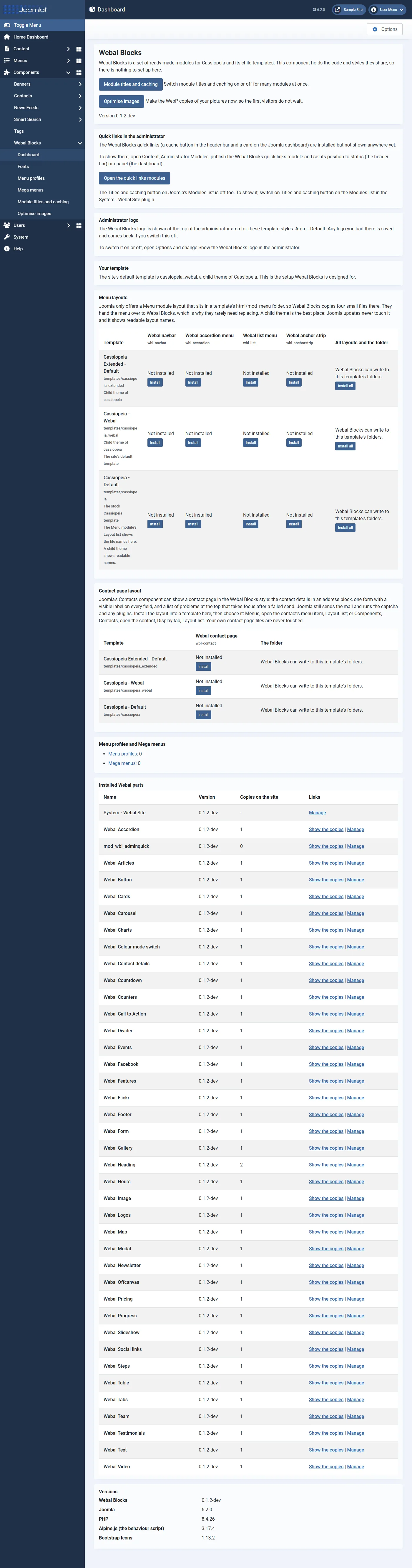
What is on the Dashboard
| Section | What it tells you or lets you do |
|---|---|
| Opening lines and buttons | A short description, the version number, and two buttons: Module titles and caching and Optimise images. |
| Things to look at | Things that need attention: menu layout files that are out of date, Menu modules that use a Webal layout but have no published Menu profile, and Menu modules whose template no longer has the layout. |
| Your template | Whether your default template is a child theme of Cassiopeia (the setup Webal Blocks is designed for), the stock Cassiopeia, or something else. |
| Menu layouts | A table with one row for each template. You install the four Webal menu layouts here. See Installing the menu layouts into templates. |
| Contact page layout | The same buttons for one more layout, Webal contact page, for Joomla's Contacts component. |
| Menu profiles and Mega menus | How many of each you have, with links to both screens. |
| Installed Webal parts | Each Webal module and the site plugin, with its version and the number of copies. See Check the install. |
| Versions | The versions of Webal Blocks, Joomla, PHP, Alpine.js and Bootstrap Icons. |
Who can do what
- Anyone who may open Webal Blocks can see the Dashboard.
- Only an administrator who may configure Webal Blocks can install, update or remove menu layouts, and everyone else sees the state without buttons, with a note that says why.
- Every change on the Dashboard uses Joomla's security token, so a link or an address typed into the browser cannot change anything.
Quick setup
Quick setup is a panel at the top of the screens where you build a navigation bar (Menu profiles) or a mega menu (Mega menus). It is not on the Dashboard, and it gathers the choices that most people make first, so that you do not have to look for them on several tabs.
- It is only a faster way to set the same options, because every choice in it is the option of the same name on a tab. If you change one place, the other shows the change.
- Round buttons are for choices where you pick only one, such as the layout or where the brand sits.
- Boxes you tick are for parts that you can combine, such as search, social links or a button.
- A choice that cannot work with your other choices is greyed out, with a dashed border, and the reason is written next to it.
- Presets set every choice in Quick setup in one click. A Navbar profile has four: Classic left, Centred logo with call to action, Transparent over a hero and Compact mobile. A mega menu has three of its own. Undo the preset puts the earlier choices back.
- When you press Save, Webal Blocks checks the same list of combinations again, and it refuses a clash and tells you why in a plain sentence.
Quick setup needs JavaScript. Without it, a note tells you to use the tabs below, and every option is on those tabs. For the full story, see Quick setup presets.
Tip Start every new Navbar profile with Quick setup, and then use the tabs to fine-tune it.