Webal Blocks gives the Joomla Menu module four extra looks, called layouts. A layout is a way of drawing a menu. You install the layouts into your template once, from the Webal Blocks Dashboard.
Why you install them
Joomla only offers a Menu module layout that sits inside a folder of the template called html/mod_menu. So Webal Blocks copies four small files there. These files hold no logic and simply hand the menu over to Webal Blocks. This means that updating Webal Blocks changes how the menus work, without you copying anything again.
| File | Name in the Menu module |
|---|---|
| wbl-navbar.php | Webal navbar |
| wbl-accordion.php | Webal accordion menu |
| wbl-list.php | Webal list menu |
| wbl-anchorstrip.php | Webal anchor strip |
Which template to use
- A child theme of Cassiopeia. This is the best choice. Joomla updates never touch it, and the Menu module's Layout list shows readable names such as "Webal navbar". The package gives you one, called Cassiopeia - Webal.
- The stock Cassiopeia. The layouts work here, but the Layout list shows file names such as wbl-navbar instead of readable names.
- Another template that uses Bootstrap 5. The layouts can work here too, with file names in the Layout list.
Install the layouts
- Open Components, then Webal Blocks, then Dashboard.
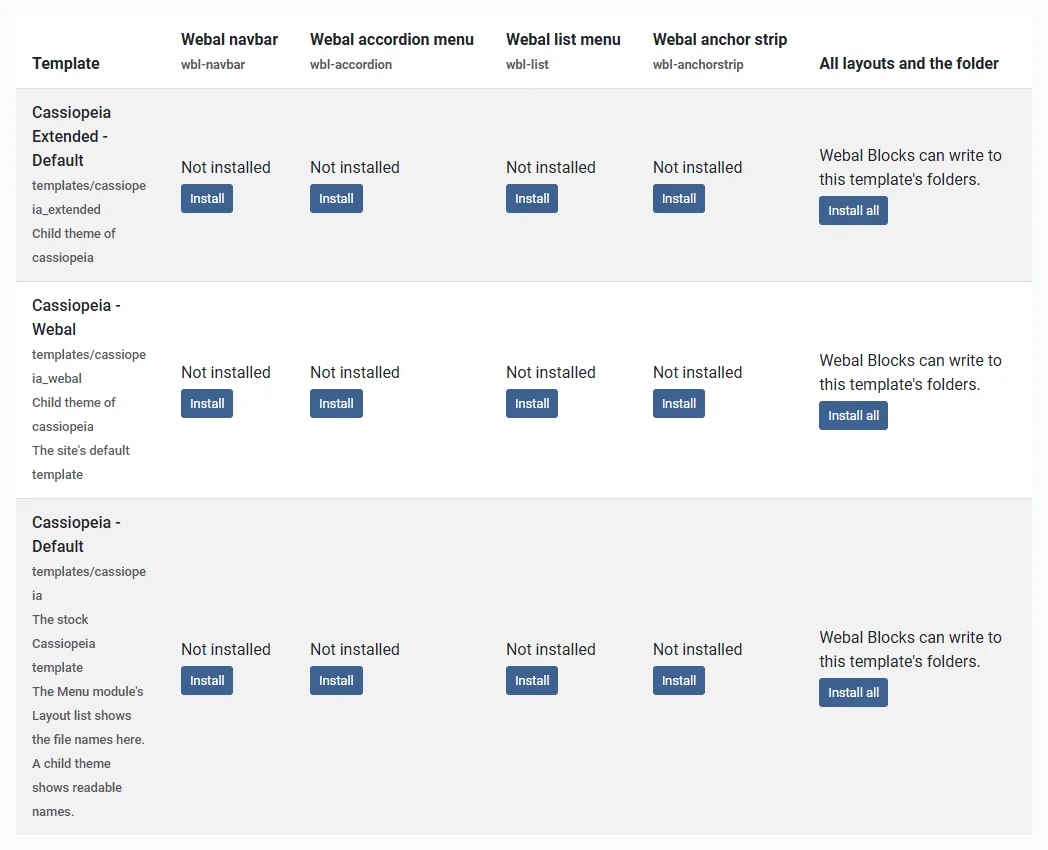
- Scroll to the section Menu layouts. It has one row for each template and one column for each layout.
- Find the row of your template.
- Press Install under one layout, or press Install all at the end of the row to install every layout at once.
- Read the message. It names the exact file, for example "Installed the layout templates/mychild/html/mod_menu/wbl-navbar.php".
Install the Webal menu layouts into the child theme: a short video with no sound. Its steps:
- Open the Components menu.
- Open Webal Blocks.
- Choose Dashboard.
- Scroll down to the Menu layouts table.
- Find the row of the child theme, Cassiopeia - Webal.
- In that row, press Install all.
- Read the message that names the files.
On a child theme, Webal Blocks also adds a small block of readable layout names to the file tpl_your-template.sys.ini in the template's language folder. The block sits between the lines ; BEGIN Webal Blocks layouts and ; END Webal Blocks layouts. Anything else in that file is left exactly as it is.
What the states mean
| State | What it means | Buttons |
|---|---|---|
| Not installed | The template does not have the file. | Install |
| Up to date (version 2) | The file is ours and as new as the one in the package. | Remove |
| Out of date (version 1, now version 2) | The file is ours but older. | Update, Remove |
| Changed by hand, so it is left alone | The file has the Webal Blocks mark, but someone edited it. Webal Blocks never overwrites, updates or removes it. To use the current layout, rename or delete your file and press Install. | None |
| Not made by Webal Blocks, so it is left alone | A file of that name exists and is not ours. Webal Blocks never overwrites, updates or removes it. | None |
The version number in the table can be different on your site, because it is the version of each small file.
When the server cannot write to the folder
Many hosts do not let the web server write inside the templates folder. When that happens, the Dashboard says Webal Blocks cannot write to this template's folders and shows a button called Download the layout files.
- Press the button. You get a zip file with the four files under your-template/html/mod_menu/, the names file for a child theme, and a README.txt that says where each file goes.
- Unzip the file inside your site's templates folder, or copy the files into place with FTP or your host's file manager.
If the template already has its own language file, the zip does not include one, because it would overwrite yours. The README prints the lines to add to the end of your file instead. If the server cannot make zip files, the buttons download one file at a time.
Use a layout in a menu
- Open Content, then Site Modules.
- Open your Menu module, or make a new one of the type Menu.
- Choose the layout in the Layout field of the module, for example Webal navbar.
The Navigation chapter shows how each layout works, and you can start with The navbar at a glance.
Keeping them up to date and removing them
- When you update Webal Blocks, the update refreshes any layout files that are out of date and still exactly as Webal Blocks made them. See Updating.
- Press Remove to take a layout away. The file and its line in the names block go with it. When the block is empty, the block goes too.
- If you make the child theme again with the same name, Joomla deletes the old child theme folder together with the layout files. The Dashboard notices this, and then you press Install again.
Who can do this
Only an administrator who may configure Webal Blocks can install, update, remove or download layouts. Everyone else sees the state without buttons. Be careful with that permission, because a group that has it can write these files into any site template.
The contact page layout
The Dashboard has a second table, Contact page layout. It works in the same way for one more layout, Webal contact page. This layout is for Joomla's Contacts component and is not a menu layout.