Webal Layouts comes as one zip file, and you install it with the Joomla installer in the same way as any other extension.
Before you start
- Check that your site meets the requirements. The installer also checks the PHP and Joomla versions, and it stops with a message if either of them is too old.
- Make a backup of your site, which is a good habit before you install any extension.
- Sign in to the administrator area as a Super User.
Install it
The file is called pkg_wbllayouts_v, then the version number, then .zip. Keep it as one zip file and do not unzip it, because the package holds all of the parts inside it.
- Open System, then Install, then Extensions.
- Choose the tab Upload Package File.
- Drag the zip file onto the box, or choose Or browse for file and pick the zip.
- Wait until Joomla shows a message, and do not close the page while it works.
- Read the message. A success message means that the install worked. An error message says why the install stopped.
What the install does
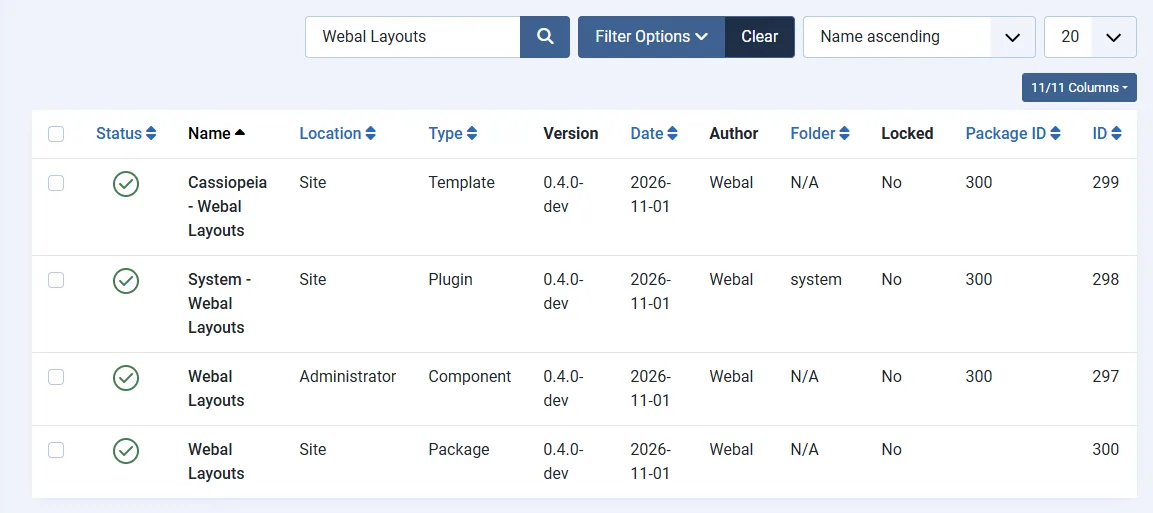
- It adds four items to your site: the package, the component Webal Layouts, the plugin System - Webal Layouts and the template Cassiopeia - Webal Layouts. You can see them under System, Manage, Extensions.
- It switches the plugin on, the first time you install.
- It adds one entry to the Components menu, called Webal Layouts.
- It adds one template style, called Cassiopeia - Webal Layouts. This style is not the Default, so no page uses it yet.
What the install does not touch
We compared a test site before and after the install, file by file and table by table. Nothing changed outside the items that belong to Webal Layouts. The pages of the site were the same too. We did this on Joomla 6.2.0 and on Joomla 5.4.10.
A site changes only when a template style of the Webal Layouts child theme holds a layout, and a page uses that style.
Updating
To update, install the newer package in the same way, over the old one. In our tests an update left the saved layouts as they were, and changed nothing outside Webal Layouts.
Removing it
Webal Layouts refuses to be removed while any template style of a theme that uses Webal Layouts holds a saved layout (styles of other themes are not counted), because removing it would delete or strand those layouts. Nothing is removed when it refuses, and you see this message.
"Webal Layouts cannot be removed yet. 2 saved layout(s) are stored in the template styles of this site, and removing Webal Layouts would delete or strand them. Delete those styles in Templates, Site Template Styles first, then remove the package again."
- Open System, then Site Template Styles, and delete the styles that hold layouts. You cannot delete the Default style, so make another style the Default first.
- Open System, then Manage, then Extensions, and type Webal Layouts in the search box.
- Tick the row with the type Package and press Uninstall.
In our test, a removal after the layout styles were deleted left no extension, style, menu entry or folder of Webal Layouts behind.
Try it
- Install the package on a test site, as above.
- Open System, then Manage, then Extensions, and type Webal Layouts in the search box.
- Look for the component, the plugin System - Webal Layouts, the template Cassiopeia - Webal Layouts and the package.
- Open System, then Site Template Styles, and find the style Cassiopeia - Webal Layouts. It is not marked as the Default.
- Open Components, then Webal Layouts.
Install the Webal Layouts package: a short video with no sound. Its steps:
- Open the System menu on the left.
- Under Install, choose Extensions.
- Choose the tab Upload Package File.
- Choose Or browse for file and pick the Webal Layouts zip.
- Wait for the result message.
- The success message says the package was installed.
- Open the Components menu.
- Webal Layouts is now in the Components menu.